
Dish Recognition System (Online Edition) Interface Guide
Overview: the Ai Dish recognition system runs on-device real-time beverage/dish recognition on Rockchip RKNN edge hardware, complemented by cloud collaborative training and version management. It consists of the Android app, training gateway, training service and cloud storage, and supports device activation, category and image management, real-time recognition (locked/free modes), photo-based verification, sample capture, model training and version rollback.
1. Android App Screens
Note: all functionality lives in the Android app (RK3576 / RKNN / NPU platform, arm64-v8a); there is no separate PC interface. Device IDs are prefixed with android_.
1.1 Home Screen (AI Product Training Platform)
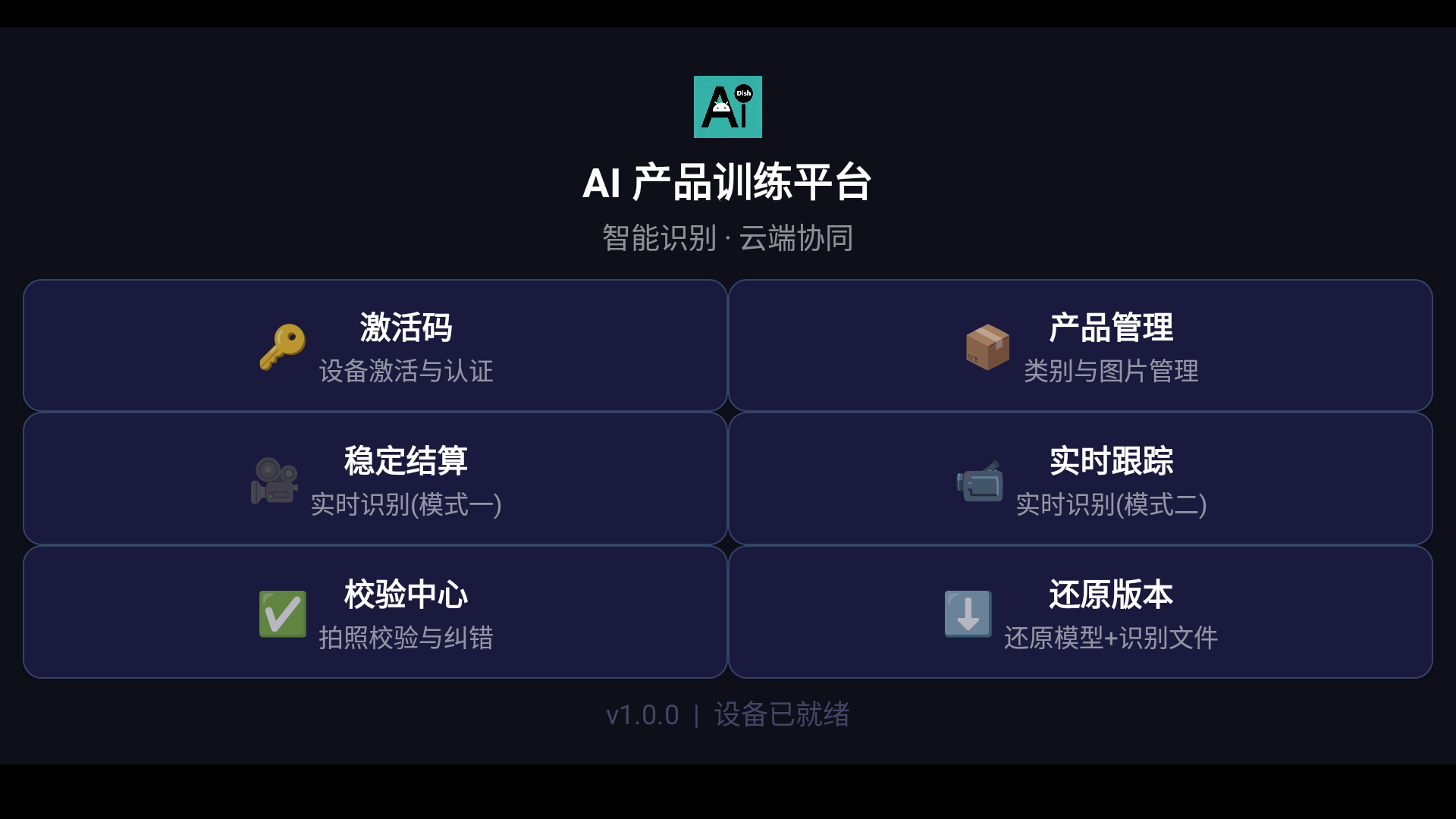
Purpose: the main entry point, grouping six features — activation code, product management, stable checkout, real-time tracking and verification center, version restore. The version number v1.0.0 and the device status "Device ready" are shown at the bottom.
| Entry | Description |
|---|---|
| Activation Code | Device activation and authentication |
| Product Management | Category and image management |
| Stable Checkout | Real-time recognition (mode 1) |
| Real-time Tracking | Real-time recognition (mode 2) |
| Verification Center | Photo verification and correction |
| Version Restore | Restore models and recognition files |
1.2 Device Verification Screen (Gateway Connection / Activation Code)
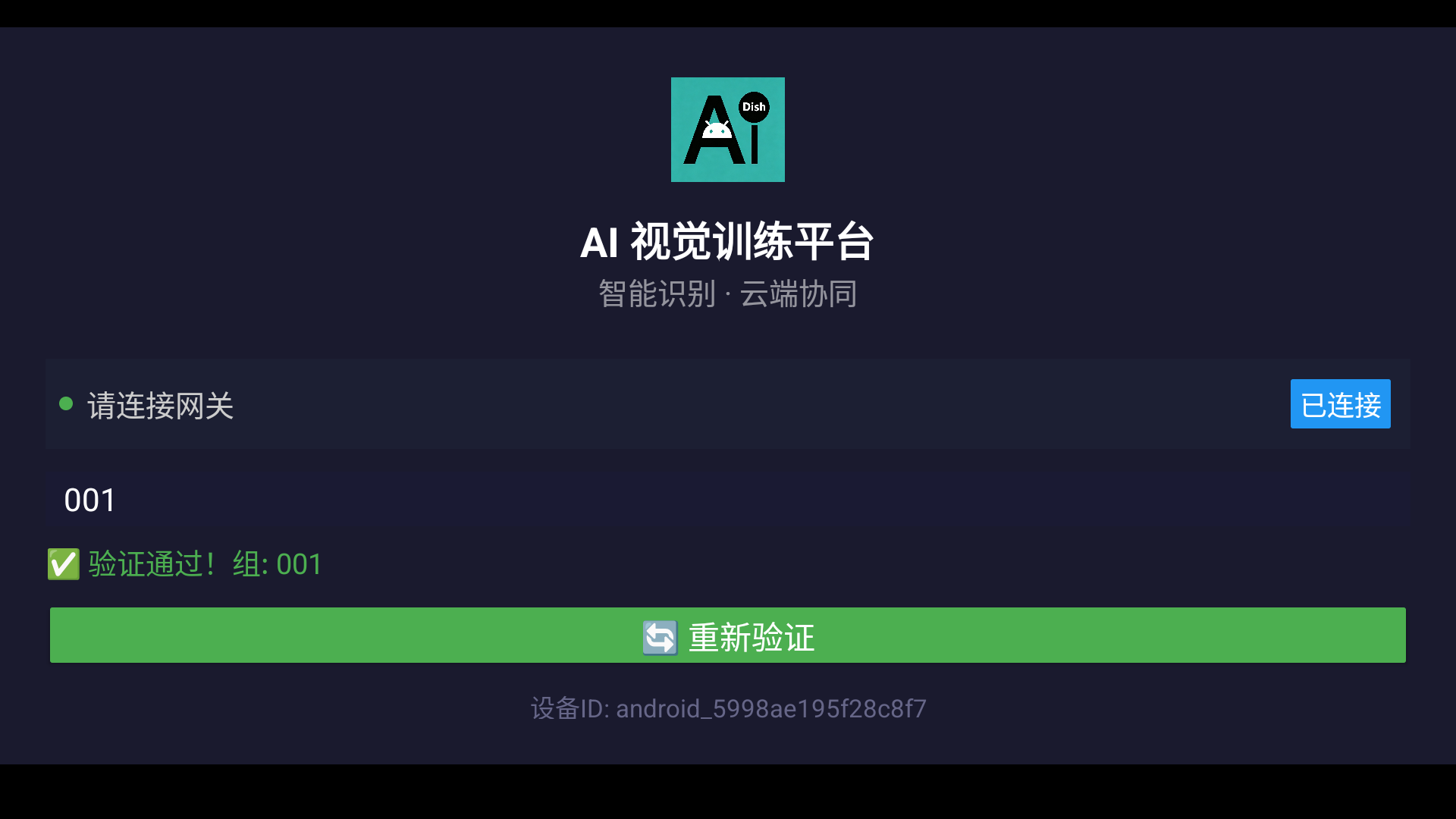
Purpose: the first step of device onboarding, completing the gateway connection and device group authentication.
- On launch the app generates a device_id prefixed with android_ and persists it locally;
- It connects to the training gateway (WebSocket/Socket.IO); the status shows "Please connect the gateway" → "Connected";
- Once connected, device group authentication runs automatically and shows "Verified! Group: 001", with the device ID shown in plain text;
- A "Re-verify" button re-runs the authentication flow manually;
- On failure the screen asks to verify again; without passing authentication, recognition and other features are unavailable.
1.3 Product Management Screen (Category and Image Management)
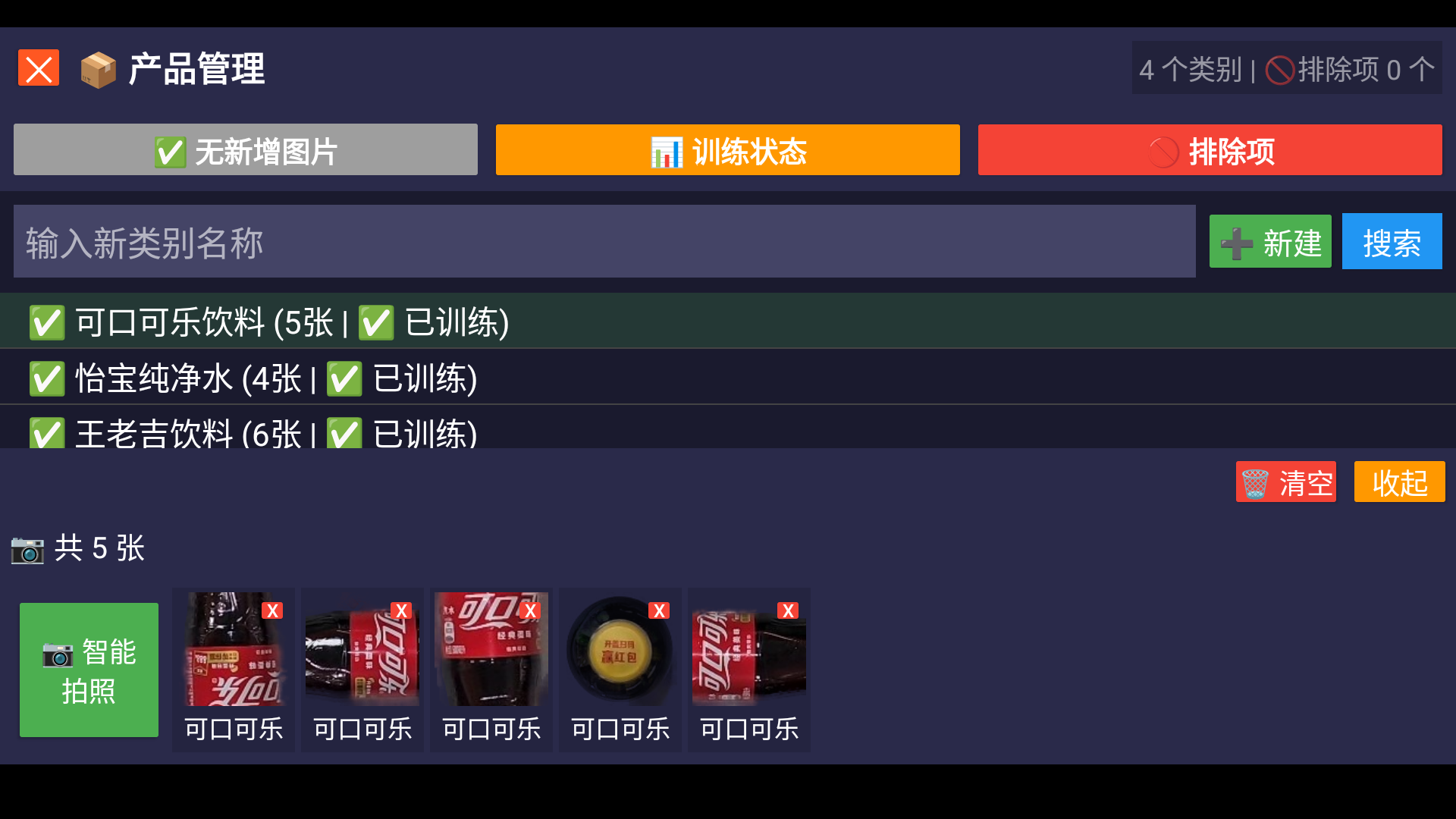
Purpose: manages recognition categories and their images; this is where training samples are organized.
- Header stats: total categories and exclusions (e.g. "4 categories | 0 exclusions");
- Tabs: no new images / training state / exclusions, to view pending additions, training progress and the exclusion list;
- New category: type a name in the input box and tap "New"; "Search" filters categories by name;
- Category list: shows each category's name, image count and training state (trained / NEW pending);
- After selecting a category: all its image thumbnails appear below, each with a delete cross in the top-right corner; "Smart capture" starts sample capture; "Clear" removes the current category's images and "Collapse" folds the image area;
- Exclusions: mark easily confused objects (plates, packaging boxes) as exclusions so recognition ignores them.
1.4 Real-time Recognition (Mode 1: Stable Checkout / Locked)
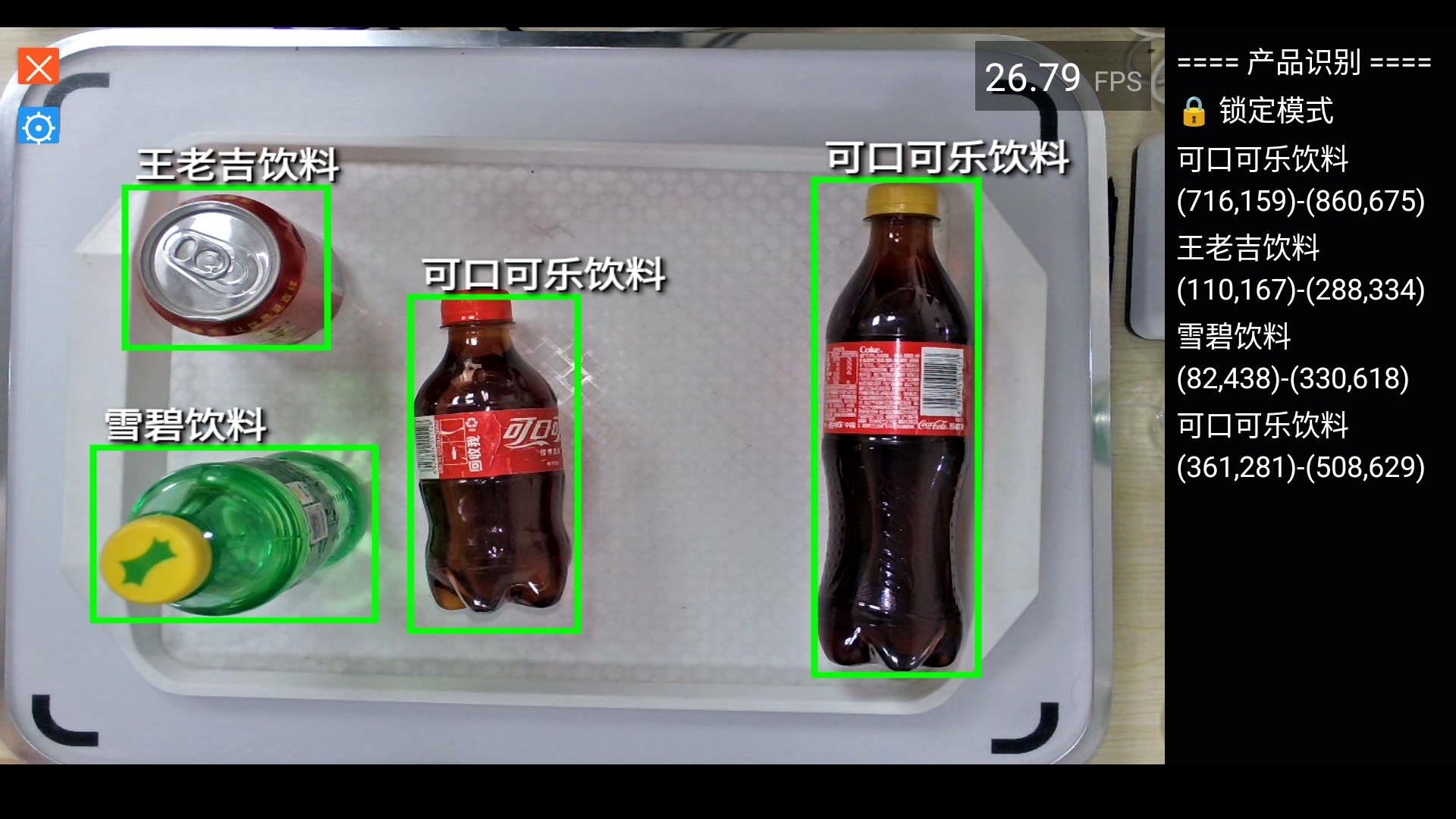
Purpose: recognizes products in the live camera feed and, once results are stable, locks the targets and outputs categories and coordinates.
- Recognized targets are drawn with green detection boxes and labeled with the category name (e.g. Wanglaoji, Coca-Cola, Sprite);
- Locked mode: a label is output only after consecutive consistent results for the same target, preventing label flicker (the stabilization logic);
- The frame rate is shown in real time in the top-right corner (e.g. 26.79 FPS);
- The "==== Product recognition ====" panel on the right lists each locked target's category and normalized coordinates;
- Multiple targets can be recognized and locked simultaneously (several bottles at once).
1.5 Real-time Tracking (Mode 2: Free Mode)
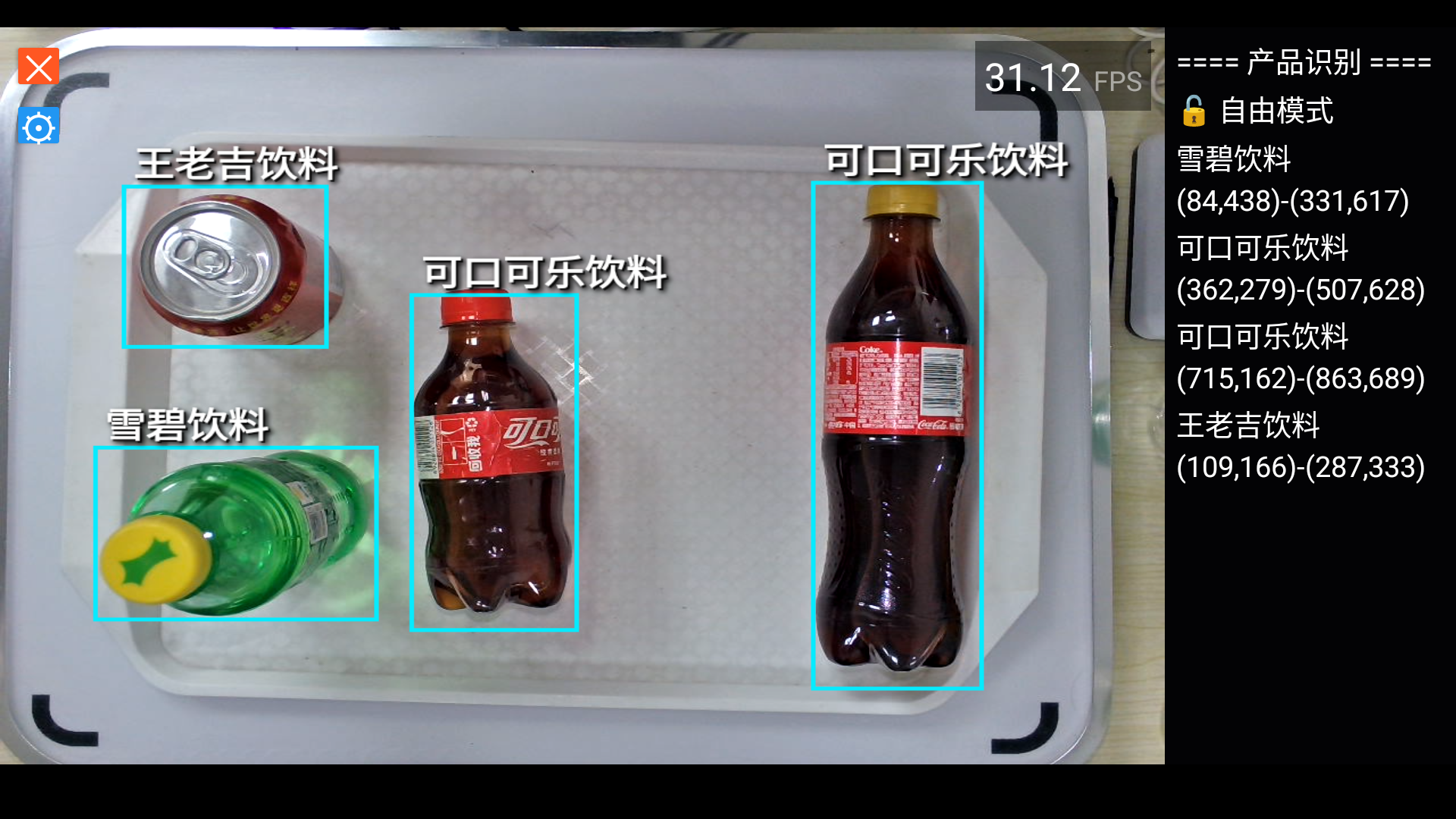
Purpose: tracks product targets frame by frame without locking results and outputs the current recognition list at any time.
- Targets are drawn with blue detection boxes and labeled with the category name;
- Free mode: recognition results update continuously as targets move;
- Real-time frame rate in the top-right corner (e.g. 31.12 FPS);
- The recognition list on the right also outputs category names and normalized coordinates, useful for debugging and observing stability.
1.6 Verification Center (Photo Verification and Correction)
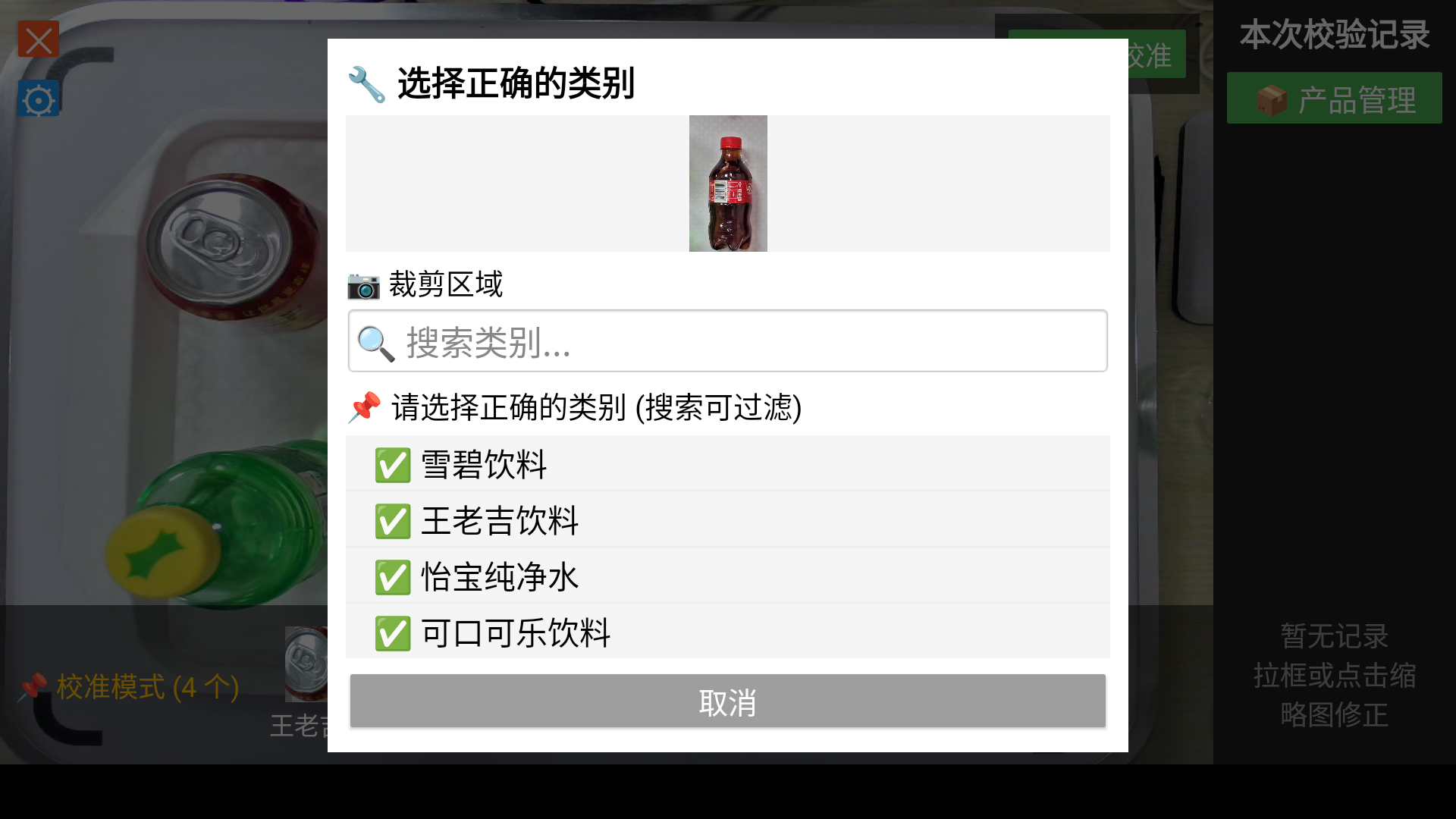
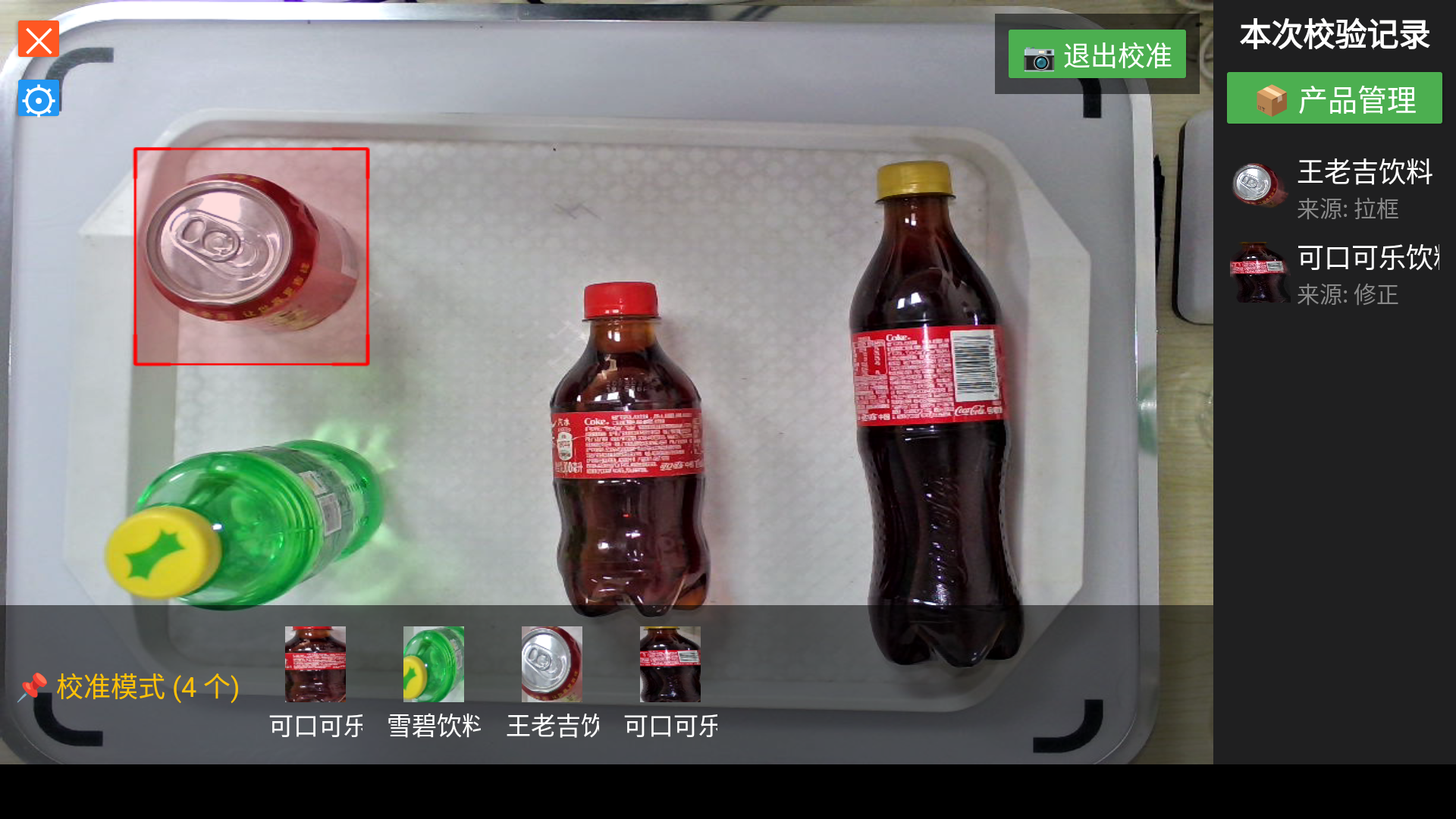
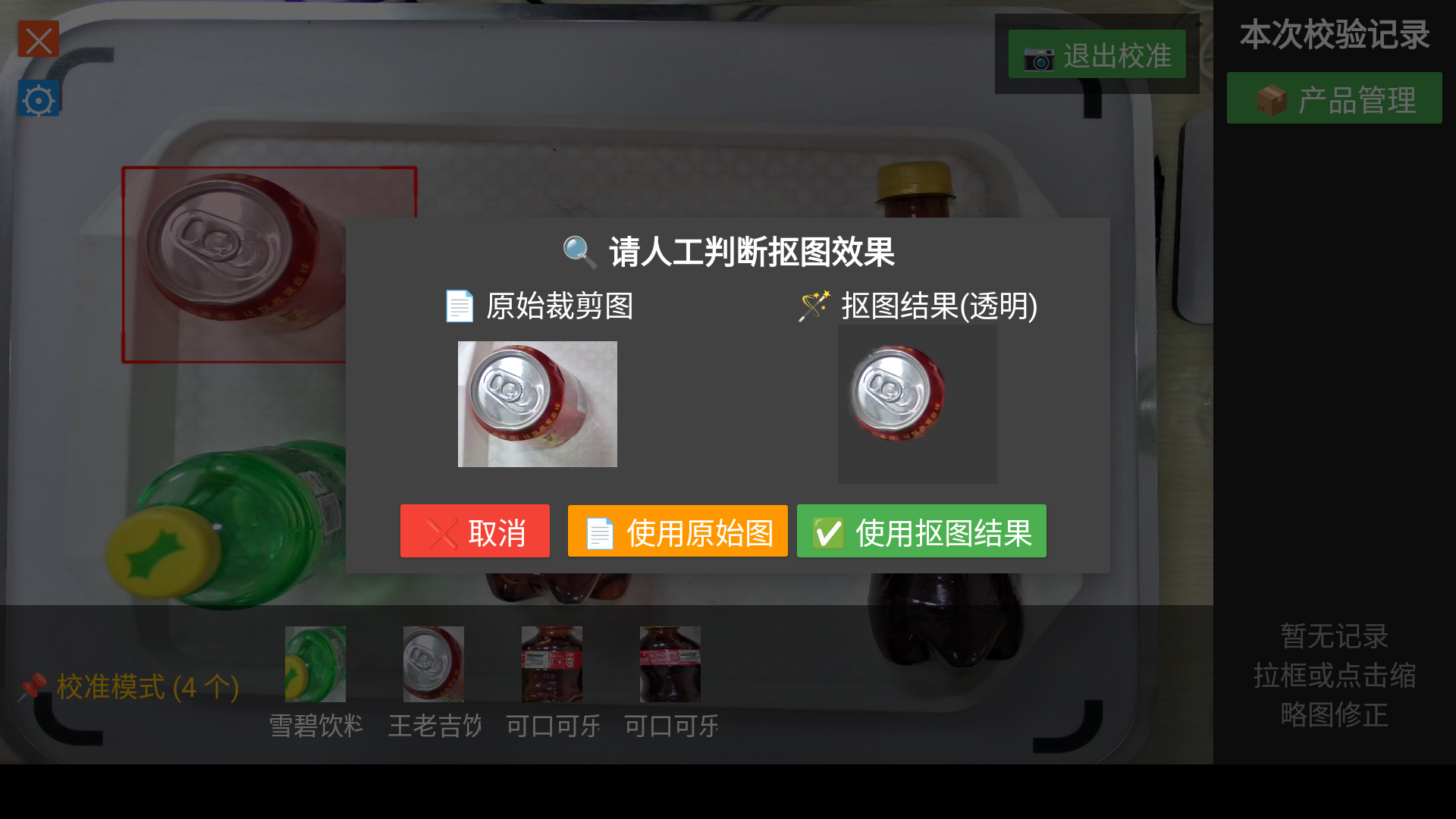
Purpose: for misrecognition, verify by photo and correct by manually choosing the category, adjusting the box or confirming the matting result; corrected samples can be ingested to improve accuracy.
- Photo verification: capture the current frame, then in the "Select the correct category" dialog review the cropped target and pick the correct category, filtering candidates with the search box;
- Box correction: drag a detection box to adjust it, or tap a thumbnail to correct; corrections are written to "Session verification records" tagged with their source (box / correction);
- Matting confirmation: the "Please judge the matting result" dialog compares the original crop with the matting result (transparent background) side by side, offering "Cancel", "Use original image" and "Use matting result";
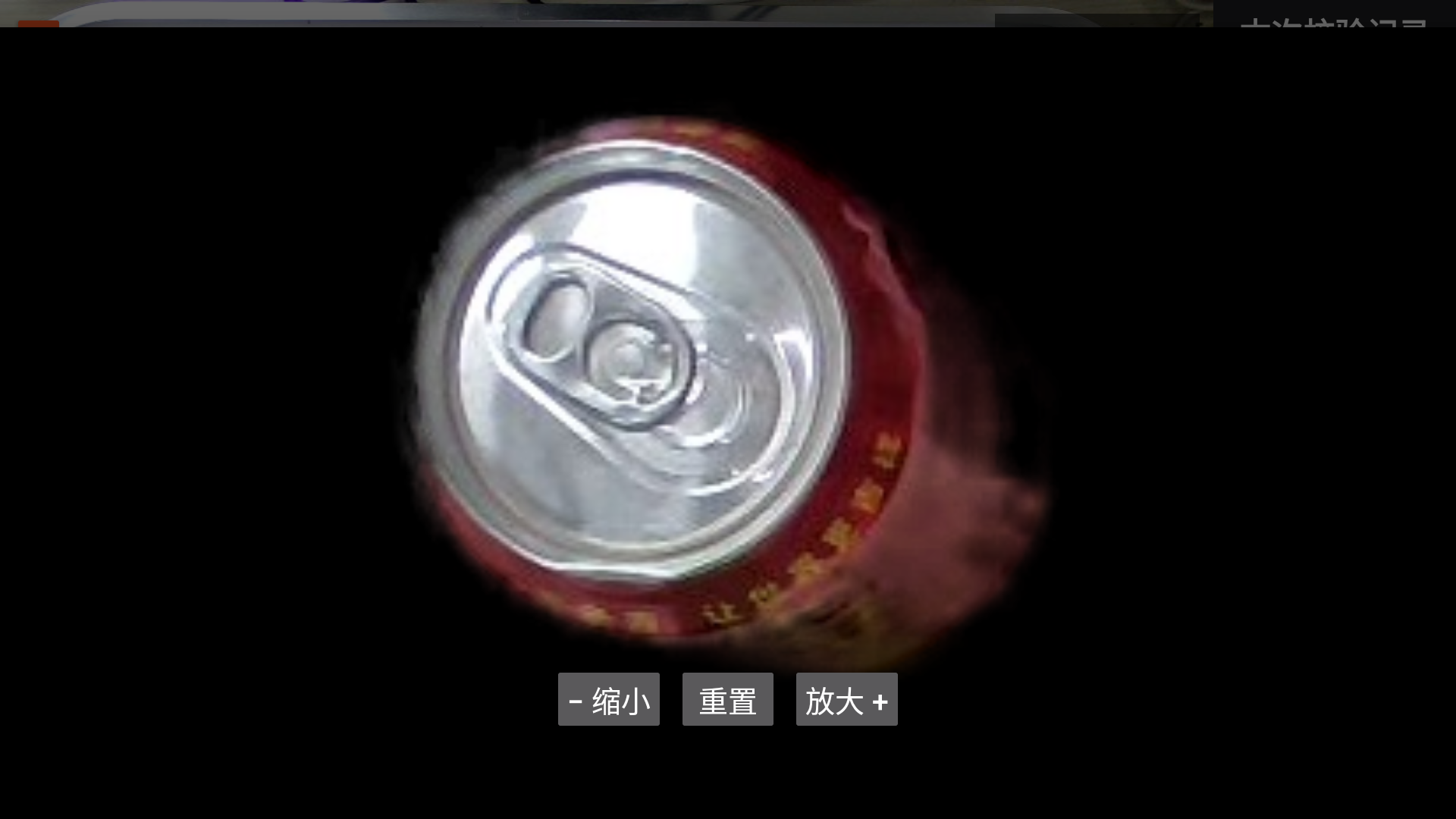
- Matting detail: zoom out / reset / zoom in on the target image to judge matting quality;
- Exit calibration: end this verification session and return to the home screen.
1.7 Sample Capture Screen (Smart Capture)
Purpose: batch-collect training images for a target category, automating shooting, cropping and matting.
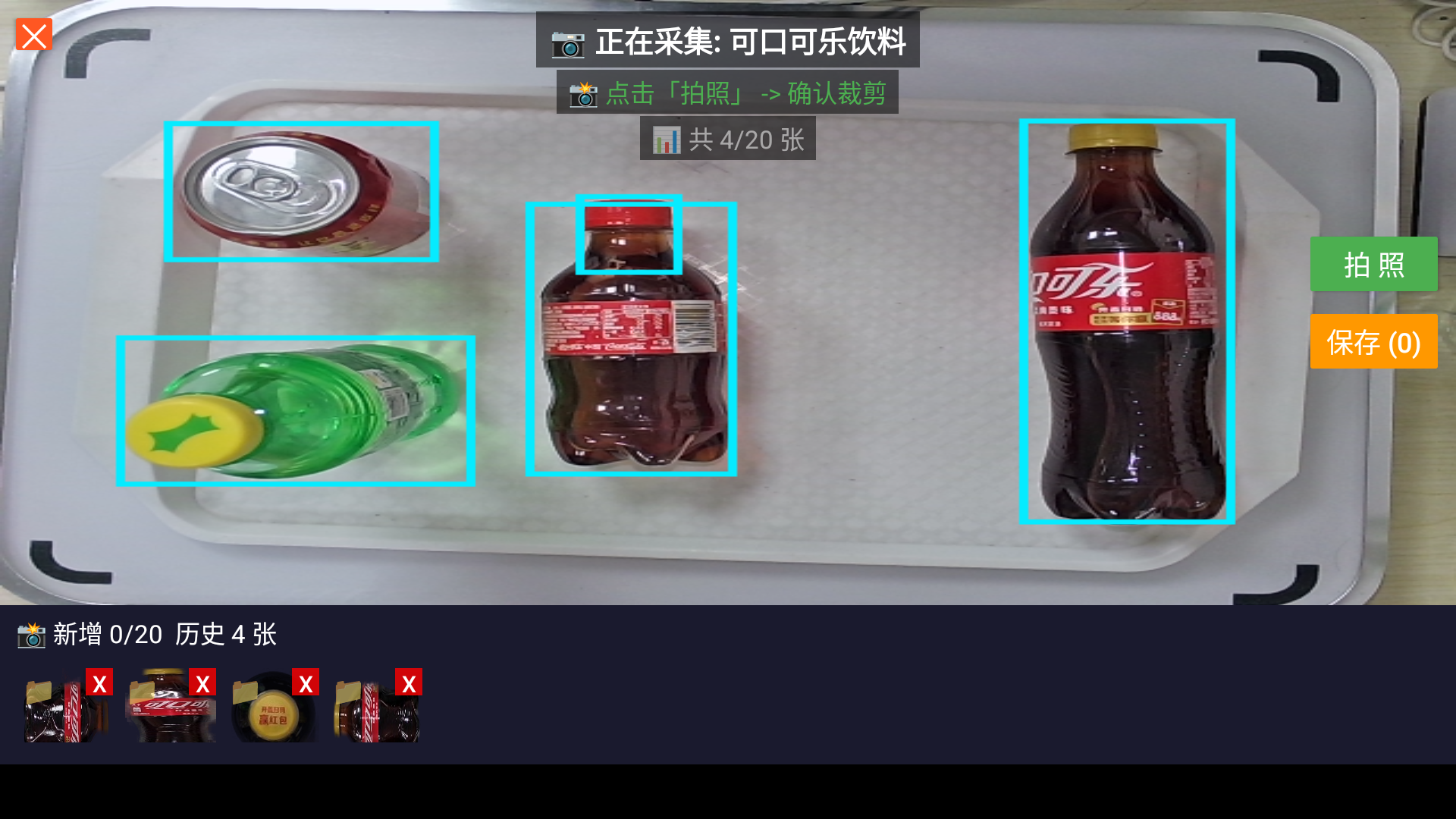
- Entering capture: the header shows "Capturing: Coca-Cola" and the hint "Tap Capture → Confirm crop", with progress (e.g. 4/20);
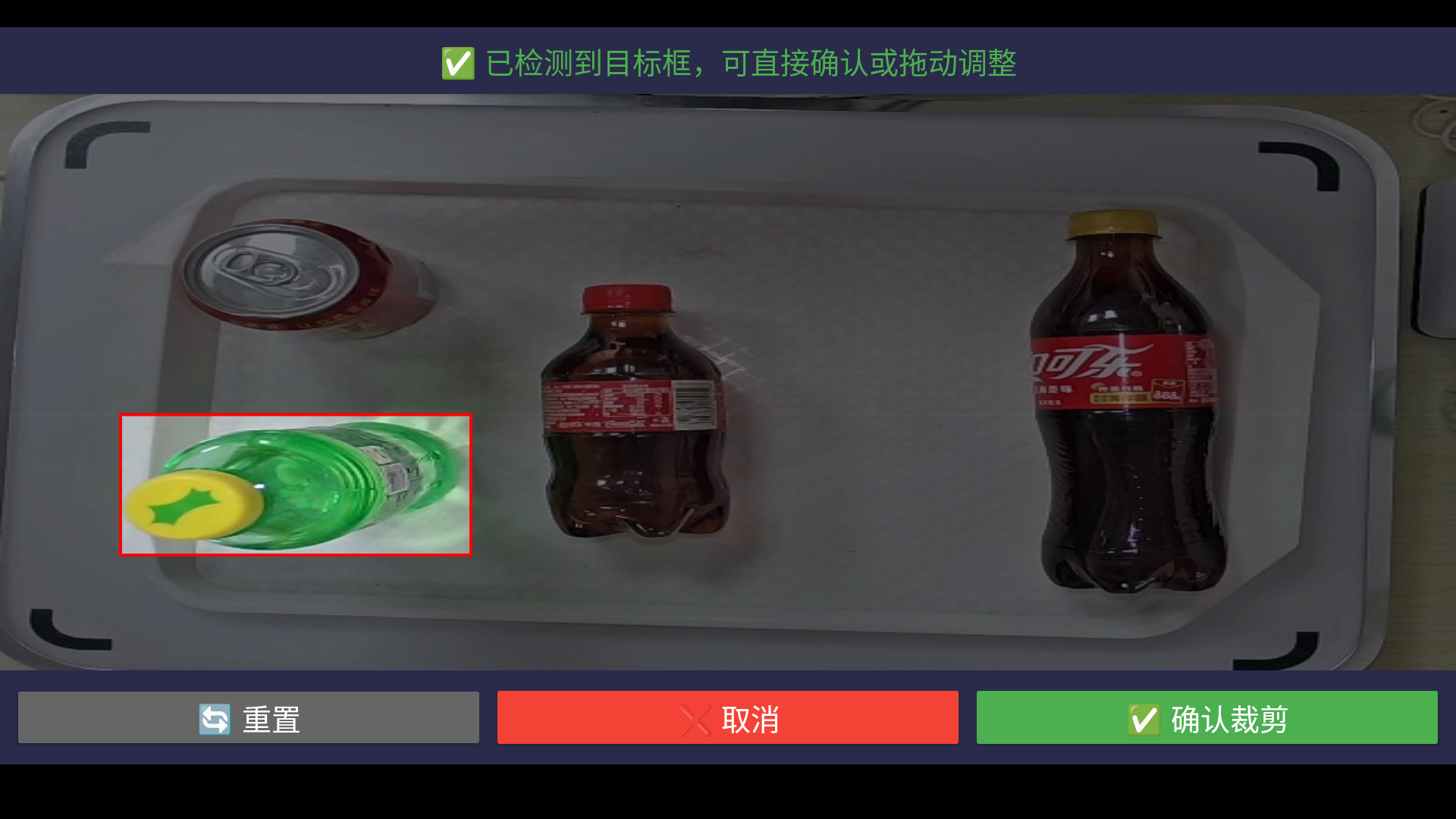
- Capture and crop: tapping "Capture" grabs the frame and opens the crop screen, where an auto-detected box suggests "Target box detected — confirm directly or drag to adjust", with "Reset", "Cancel" and "Confirm crop";
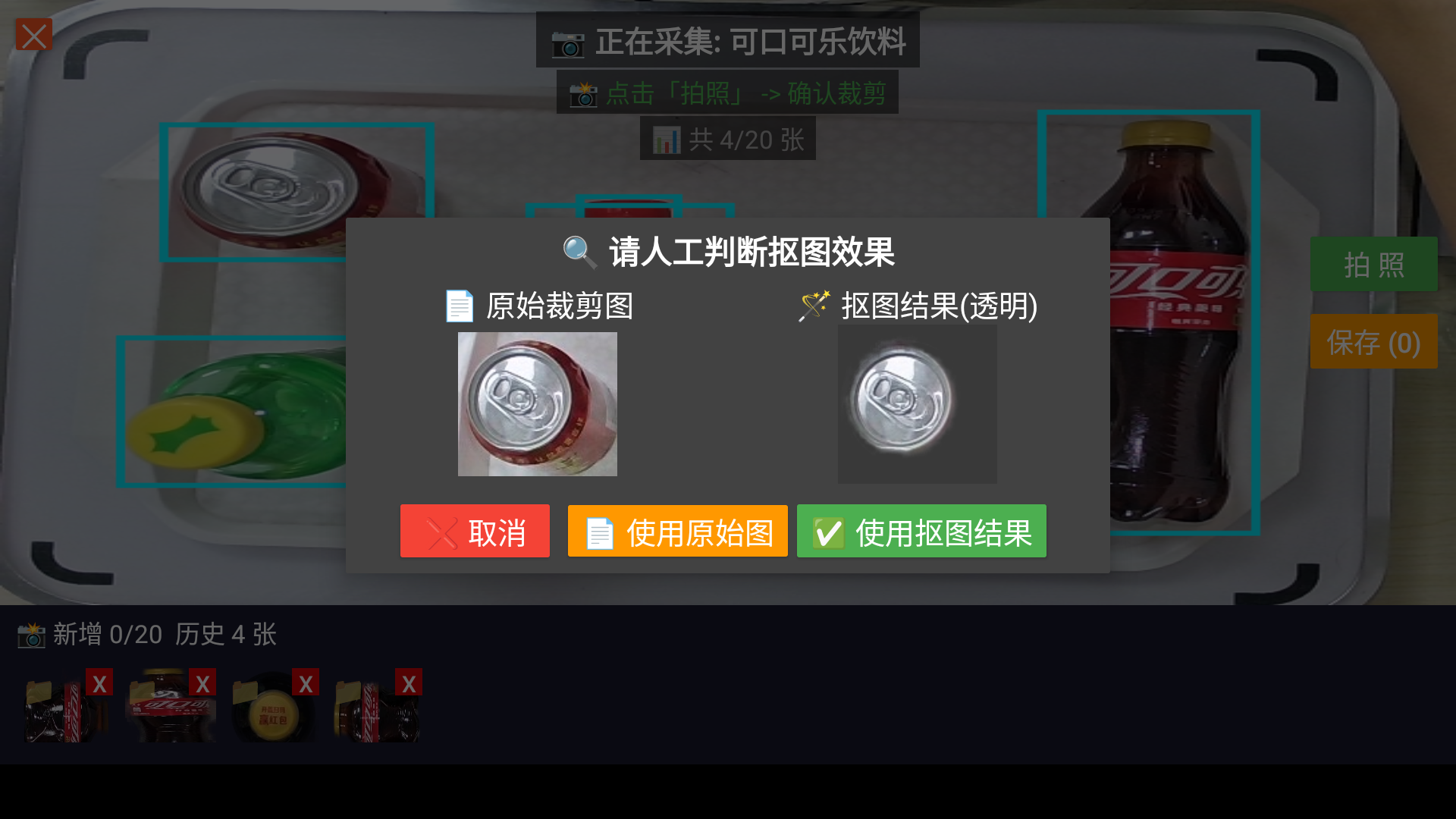
- Matting confirmation: after cropping, the "Please judge the matting result" dialog lets you choose the original image or the matting result (transparent background);
- Save: tapping "Save (N)" ingests the captured images; ingested images can be deleted from their top-right corner;
- Bottom stats: new N/20 images and the historical count, plus thumbnails of earlier captures for deletion management.
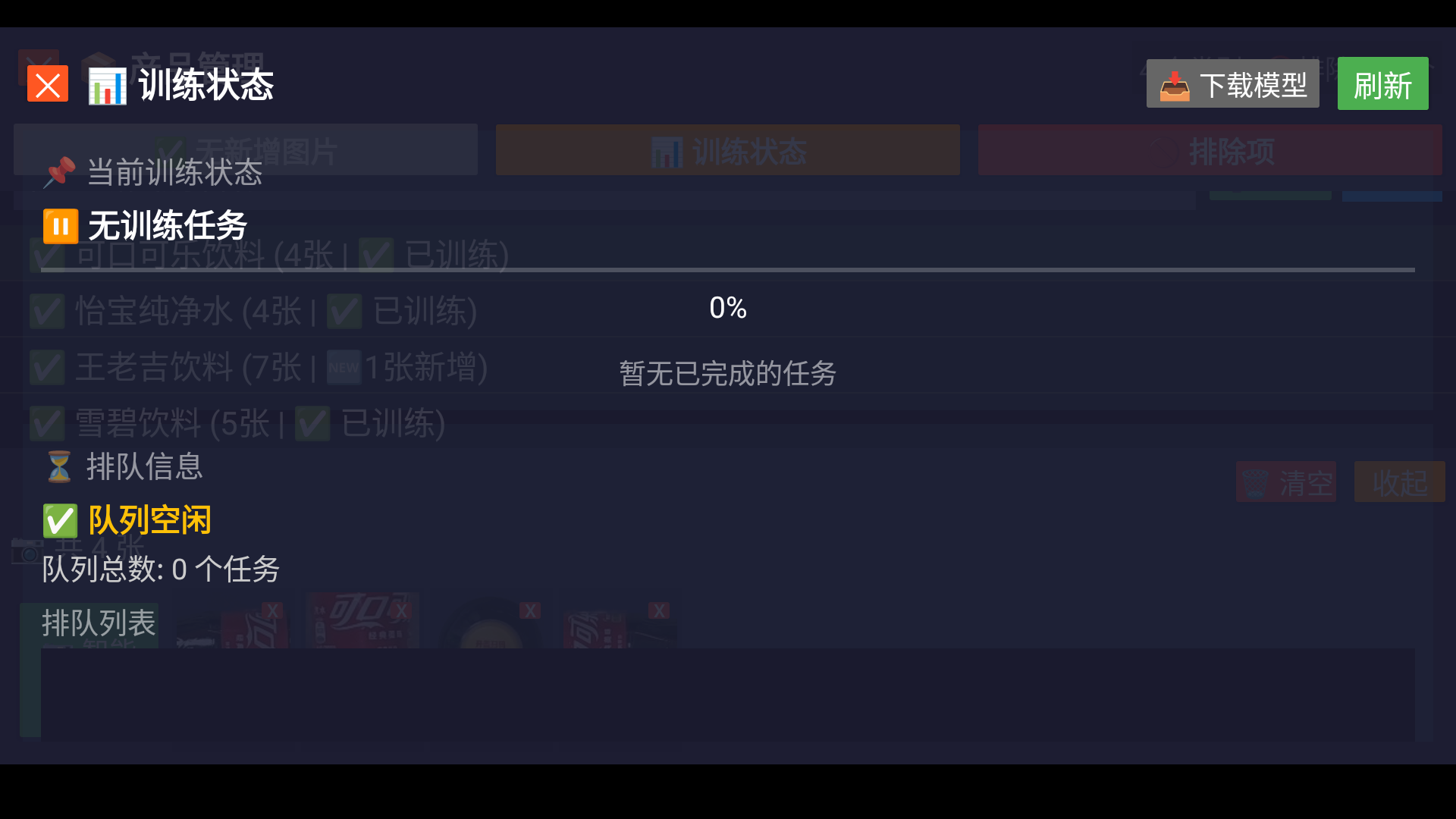
1.8 Training Status Screen
Purpose: view per-category training progress, the current task and queue status, and download models or refresh.
- Current status: no training task / training, with a progress percentage and the hint "No completed tasks yet";
- Category list: shows each category's name, image count and state — trained / NEW (e.g. "Wanglaoji (7 images | 1 new)");
- Queue info: queue idle / queue has tasks, with the total queue length;
- Queue list: submitted tasks awaiting training;
- Actions: "Download model" in the top-right downloads the latest artifacts and "Refresh" updates the status; "Clear" and "Collapse" at the bottom manage the list.
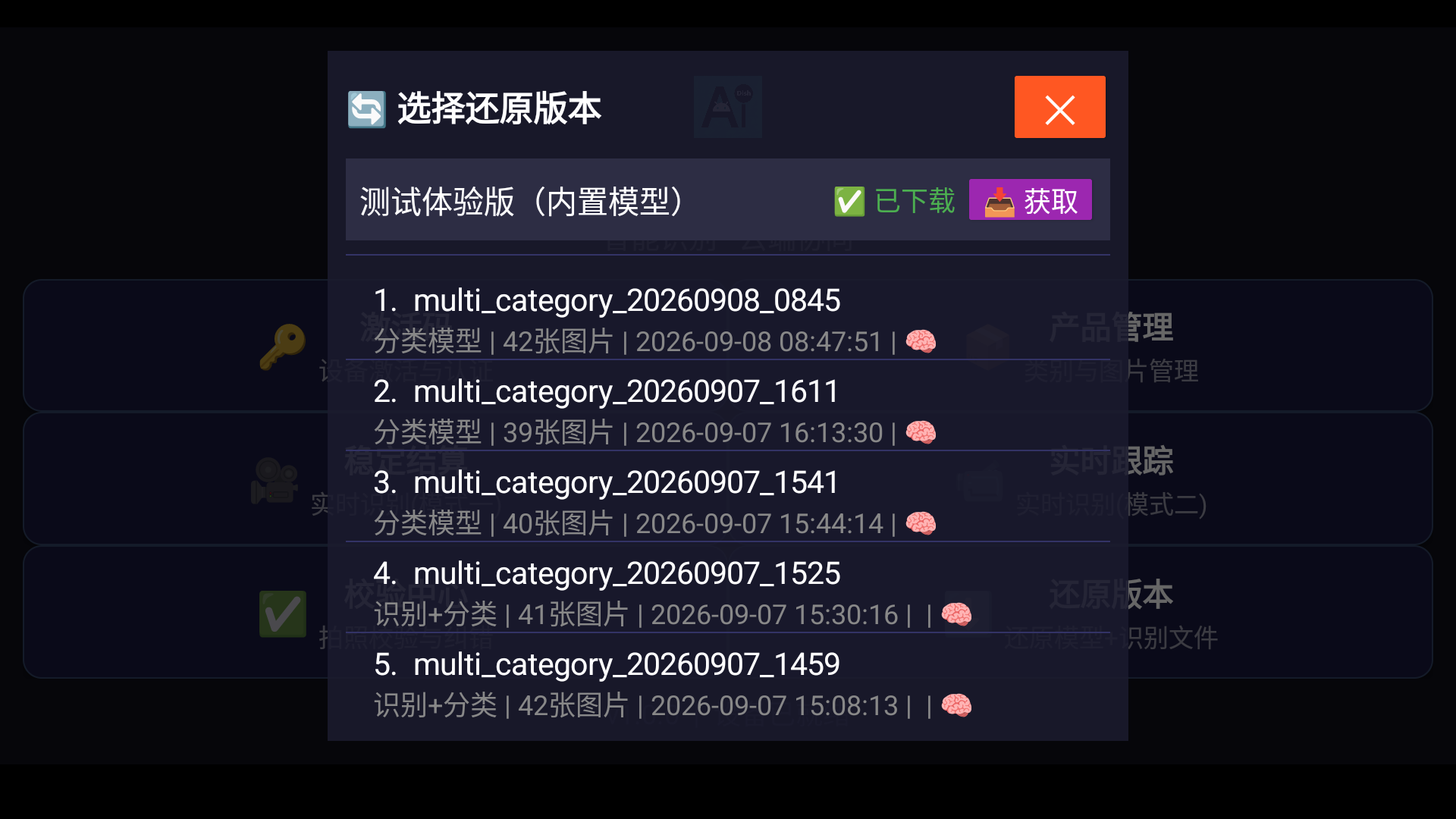
1.9 Version Restore Screen
Purpose: one-tap restore of models and recognition files (including the built-in test version and historical training versions).
- Test version (built-in models): bundled model assets, showing "Downloaded" or "Get"; one tap fetches them if not downloaded;
- Version history: training versions in reverse chronological order, each with an ID, version name (multi_category_YYYYMMDD_HHMM), model type, image count and creation time;
- Classification model: updates only the CLIP classification features (e.g. multi_category_20260908_0845, 42 images);
- Recognition + classification: updates both the detection model and the CLIP classification features (e.g. multi_category_20260907_1525, 41 images);
- Selecting a version restores models and recognition files, useful for rolling back to earlier behavior or recovering a working state.
2. Core Modules
2.1 Device Groups and Activation Codes
- Device IDs are prefixed with android_ and persisted locally across restarts;
- After connecting to the training gateway, device group authentication runs automatically (e.g. group 001); only authenticated devices can access recognition and capture;
- When the gateway is unreachable the UI shows "Please connect the gateway" and supports "Re-verify" to retry.
2.2 Categories and Recognition Rules (Unified On-device Thresholds)
Recognition uses a two-stage YOLO detection + CLIP classification pipeline:
| Stage | Model / mechanism | Description |
|---|---|---|
| Object detection | YOLO detection model | NPU inference returning boxes and confidence, filtering edge targets |
| Object tracking | ObjectTracker (track id) | Multi-object tracking to stabilize detections and prevent box jitter |
| Image recognition | CLIP classification model | Extracts 512-dim features from the detection crop and compares them with category text features |
| Similarity threshold | Default 0.6 (adjustable 0.3~0.9) | Below the threshold returns "ignore"; matching an exclusion returns null |
| Result stabilization | Output after 3 identical frames | A category is output only after 3 consistent results for the same track id (locked mode) |
| Exclusions | Positive / exclusion features | Easily confused objects are marked as exclusions and ignored during recognition |
Category and exclusion features are persisted locally (text_features.bin + categories.json) and can be updated by downloading from the cloud.
2.3 Sample Capture and Matting
- Flow: smart capture → confirm/adjust the target box → judge matting quality (original / matting result) → ingest;
- Matting results keep a transparent background, removing trays, table surfaces and other background noise to improve sample quality;
- Captured images are ingested by category as training samples for that category; historical images can be deleted or cleared;
- Newly captured images are marked NEW and become trained after training completes.
2.4 Training and Version Management
- Training flow: collect/verify images on the device → submit a training task (/submit_train_task) → the training service trains detection and classification models → artifacts are uploaded to the cloud;
- Training artifacts: bestv5n.rknn (detection model), clip_images_cn.rknn (vision model), text_features.bin (text features), categories.json (category configuration);
- Version management: the training gateway records historical versions (multi_category_date_time) that can be downloaded and restored from the version restore screen; the built-in test version can be fetched directly;
- Cloud storage: models, features, categories and images are organized under test_version/ and category_images/{category}/{filename}.jpg.